FOR HUMANS + AGENTS

The serial toolkit
for the AI agent era.

Configure one MCP connection. Let your agent share serial ports, query persistent logs, flash and reuse firmware versions, and capture the physical scene—with operations and evidence you can trace.

macOS · Apple Silicon / Windows · x86-64 / MIT

SHARED, TRACEABLE I/OPERSISTENT LOGSFIRMWARE VERSIONSCAMERA CONTEXTONE MCP CONNECTION

01 / WHY UARTBUDDY

Five reasons.
One hardware context for your agent.

What was sent, what the logs reported, which build was flashed, and what happened on the bench—connected through one entry point.

01

SHARED PORT, TRACEABLE I/O

Share the port.
Trace agent reads and writes.

Use the same connections. Serial I/O retains source and time, and MCP calls leave a record. Follow your agent’s operations and look back at device responses.

02

PERSISTENT, AGENT-FRIENDLY LOGS

Keep the logs.
Query them when needed.

Captured RX/TX, system, MCP, and flash events persist locally. Your agent reads the relevant devices, sessions, and cursors, then waits for fresh output—without manual log dumps.

03

FIRMWARE HISTORY, VERSIONED

Archive every flash.
Keep reusable versions.

Retain complete image packages and automatically group flash records beneath them. Supply a Git commit and note to trace source and firmware versions, then reflash saved artifacts later.

Explore firmware versions ↓
04

CAMERA IN THE LOOP

Connect the camera.
Complete the physical context.

Request captures through MCP and combine the scene with serial responses, firmware provenance, and logs. Image-capable agents with access to capture files can inspect the results.

05

ONE MCP CONNECTION

One MCP configuration.
The whole debugging workspace.

Reach serial I/O, log queries, flashing, historical firmware, and camera operations through one service. No separate service setup per tool; the app, hardware permissions, and runtime dependencies must still be ready.

Configure MCP ↓

02 / FLASHED FIRMWARE, VERSIONED

Git tracks source.
This keeps flashed versions.

Keep the actual files supplied for flashing, not just a record that it happened. An ESP-IDF multi-image build becomes one complete package; reflashing it adds a run, not another library entry.

  • Identify the buildUse a detected or supplied version, plus a commit ID and test note.
  • Trace each runFlash records belong to their firmware package; use device history and the timeline to investigate runtime logs and outcomes.
  • Reflash the packageUse the archived copies on a compatible target, even after the original build folder is gone.

This manages artifacts, not Git branches. Flash records are grouped automatically under firmware packages; runtime logs are traced by device, session, and time, not tagged with a version per event. Git commits are caller-supplied. Reflashing is not a device-data snapshot restore.

EXAMPLE FIRMWARE PACKAGE

controller.binbench-v2
Source commit
a1b2c3d
Test note
Bench validation · motor response check
EXAMPLE FIRMWARE PACKAGE
AddressArchived image
0x0000bootloader.bin
0x8000partition-table.bin
0x10000controller.bin
TimeTarget deviceFlash resultCommit / note

3 images → 1 package → multiple flash records

Illustrative offsets only. Use the address map from your actual build.

03 / BUILD → FLASH → OBSERVE → REUSE

Take a build.
Get feedback from the board.

Once your agent is connected and the firmware is built, try a request like this. UARTBuddy handles device access and records; your existing tools still compile the firmware.

AN EXAMPLE TASK FOR YOUR AGENT

Confirm my controller and read recent logs. Flash all images using the build’s address map, recording the Git commit and test note. Wait for the result and check startup output. If a camera is available, capture a photo for me to inspect. Summarize the version, result, and evidence.
  1. 01

    Confirm the target

    Choose the device and address map explicitly.

  2. 02

    Flash and observe

    Wait for the result, then read the application’s startup output.

  3. 03

    Keep and reuse

    Retain the files, source annotations, and records for the next reflash.

04 / PHYSICAL CONTEXT

Beyond the logs.
Look at the hardware.

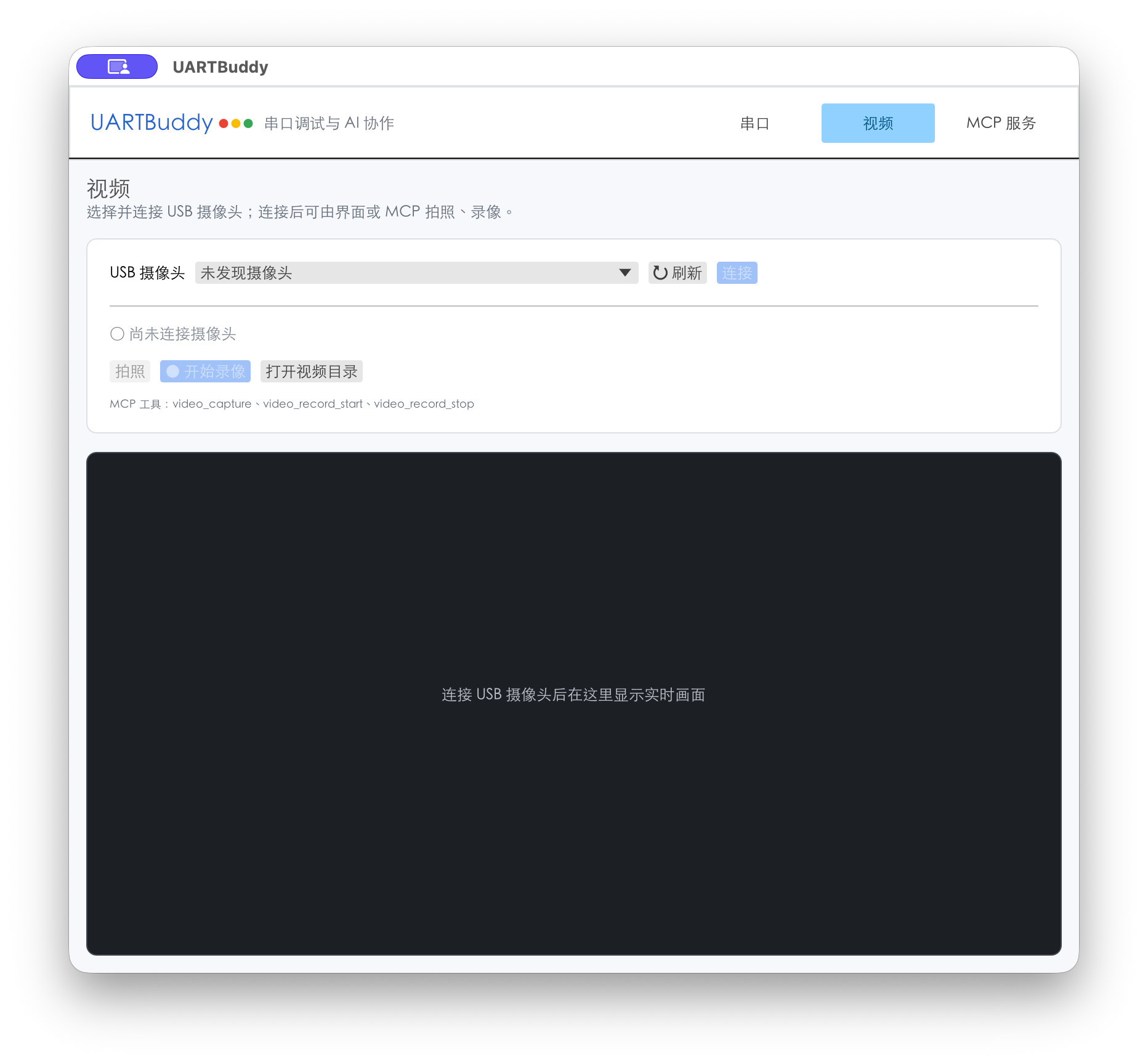
Follow a command into the real world by combining serial responses, logs, firmware provenance, and camera captures. Request photos or recordings through the same MCP service; image-capable agents with file access can inspect them, and you can check the scene in the UI.

USB camera workspace in an earlier version of UARTBuddy
Video requires ffmpeg. The image shows an earlier version of the actual app.

05 / GET STARTED

Configure one MCP.
Connect the whole workspace.

  1. Open UARTBuddy

    Download the app, add a serial device, and connect. Close other monitors holding that port.

  2. Copy the MCP address

    Click Copy in the app’s MCP tab, then add the address to your agent’s MCP configuration.

  3. Read first, then act

    Ask the agent to list devices and read your selected board’s output. Allow writes or flashing when ready.

LOCAL MCP ENDPOINT

http://127.0.0.1:8765/mcp
Codex configuration example
[mcp_servers.uartbuddy]
url = "http://127.0.0.1:8765/mcp"
startup_timeout_sec = 3
tool_timeout_sec = 125

Also works with Streamable HTTP MCP clients such as Claude Code. Add one service, not separate serial, flasher, and camera services. Keep the app running, with hardware and dependencies ready.

YOUR HARDWARE. YOUR AGENT. ONE WORKSPACE.

Your hardware. Your agent.
One workspace.

Shared I/O. Persistent logs. Version tracing. Visual evidence. One MCP connection.

Serial monitoring needs no flasher. Flashing requires a compatible vendor tool; esptool supports multi-image input. macOS packages are not notarized; Windows packages are unsigned. Releases may lag current source features.

Logs, archives, and recordings stay local. What your AI client sends to its model provider depends on its configuration. MCP has no authentication layer; keep it local and configure operation approvals.